Simple Workflow
You only need a GitHub repository to create and run a GitHub Actions workflow. In this guide, you'll add a workflow that demonstrates some of the essential features of GitHub Actions.
The following example shows you how GitHub Actions jobs can be automatically triggered, where they run, and how they can interact with the code in your repository.
Creating your first workflow
Create a
.github/workflowsdirectory in your repository on GitHub if this directory does not already exist.In the
.github/workflowsdirectory, create a file namedgithub-actions-demo.yml. For more information, see "Creating new files."Copy the following YAML contents into the
github-actions-demo.ymlfile:YAML
name: GitHub Actions Demo
on: [push]
jobs:
  Explore-GitHub-Actions:
    runs-on: ubuntu-latest
    steps:
      - run: echo "🎉 The job was automatically triggered by a ${{ github.event_name }} event."
      - run: echo "🐧 This job is now running on a ${{ runner.os }} server hosted by GitHub!"
      - run: echo "🔎 The name of your branch is ${{ github.ref }} and your repository is ${{ github.repository }}."
      - name: Check out repository code
        uses: actions/checkout@v3
      - run: echo "💡 The ${{ github.repository }} repository has been cloned to the runner."
      - run: echo "🖥️ The workflow is now ready to test your code on the runner."
      - name: List files in the repository
        run: |
          ls ${{ github.workspace }}
      - run: echo "🍏 This job's status is ${{ job.status }}."
Scroll to the bottom of the page and select Create a new branch for this commit and start a pull request. Then, to create a pull request, click Propose new file.
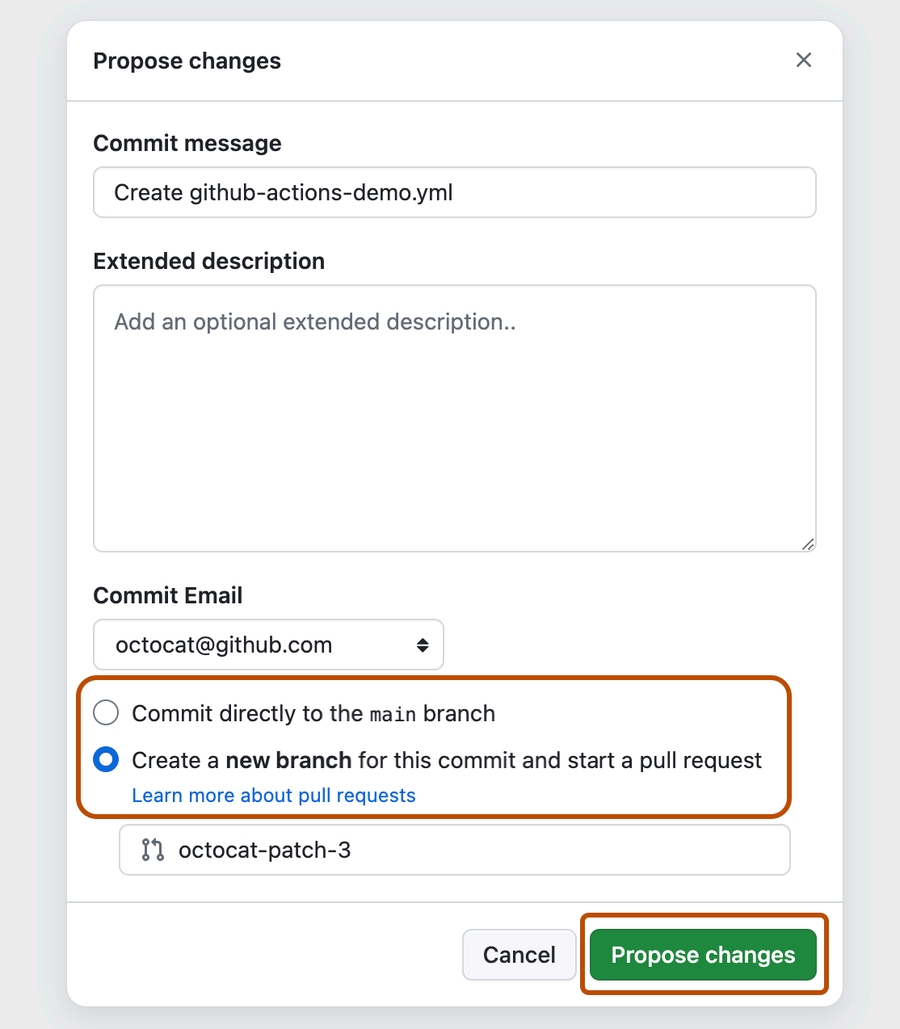
Committing the workflow file to a branch in your repository triggers the push event and runs your workflow.
Viewing your workflow results
On GitHub.com, navigate to the main page of the repository.
Under your repository name, click Actions.

In the left sidebar, click the workflow you want to see.
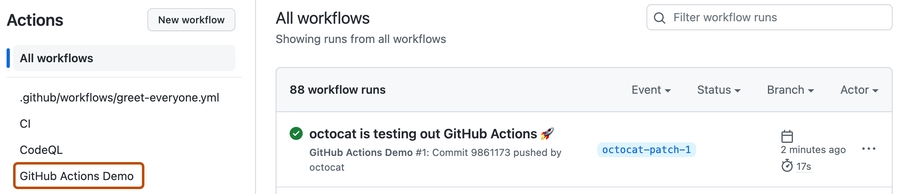
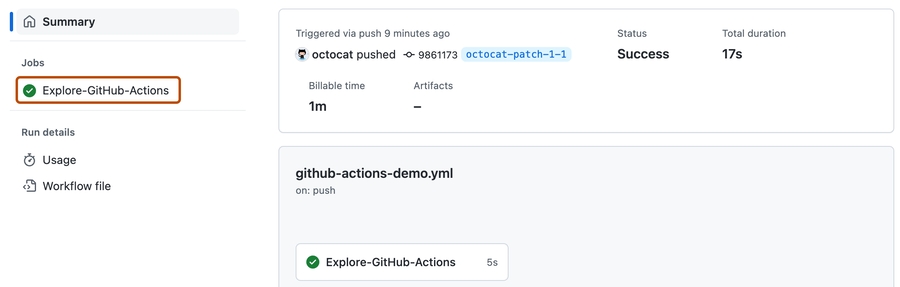
From the list of workflow runs, click the name of the run you want to see.

Under Jobs , click the Explore-GitHub-Actions job.
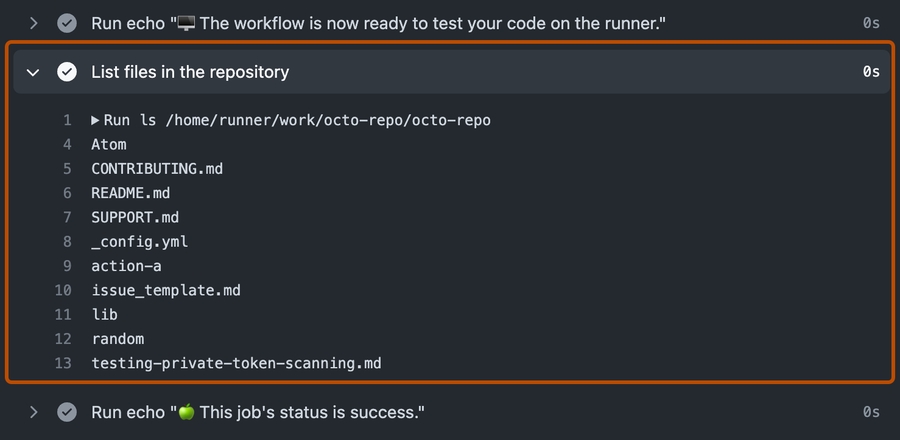
The log shows you how each of the steps was processed. Expand any of the steps to view its details.
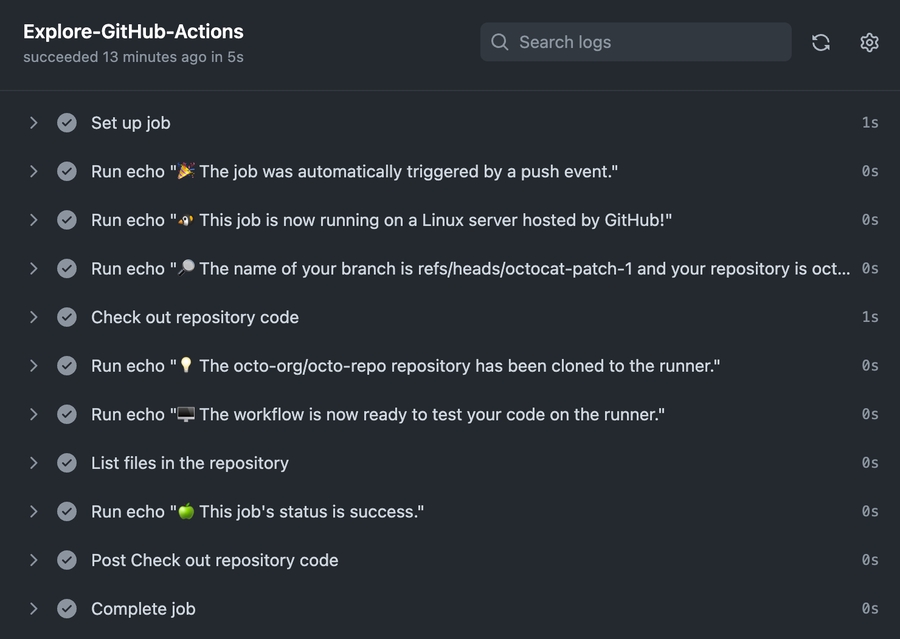
For example, you can see the list of files in your repository:
Last updated